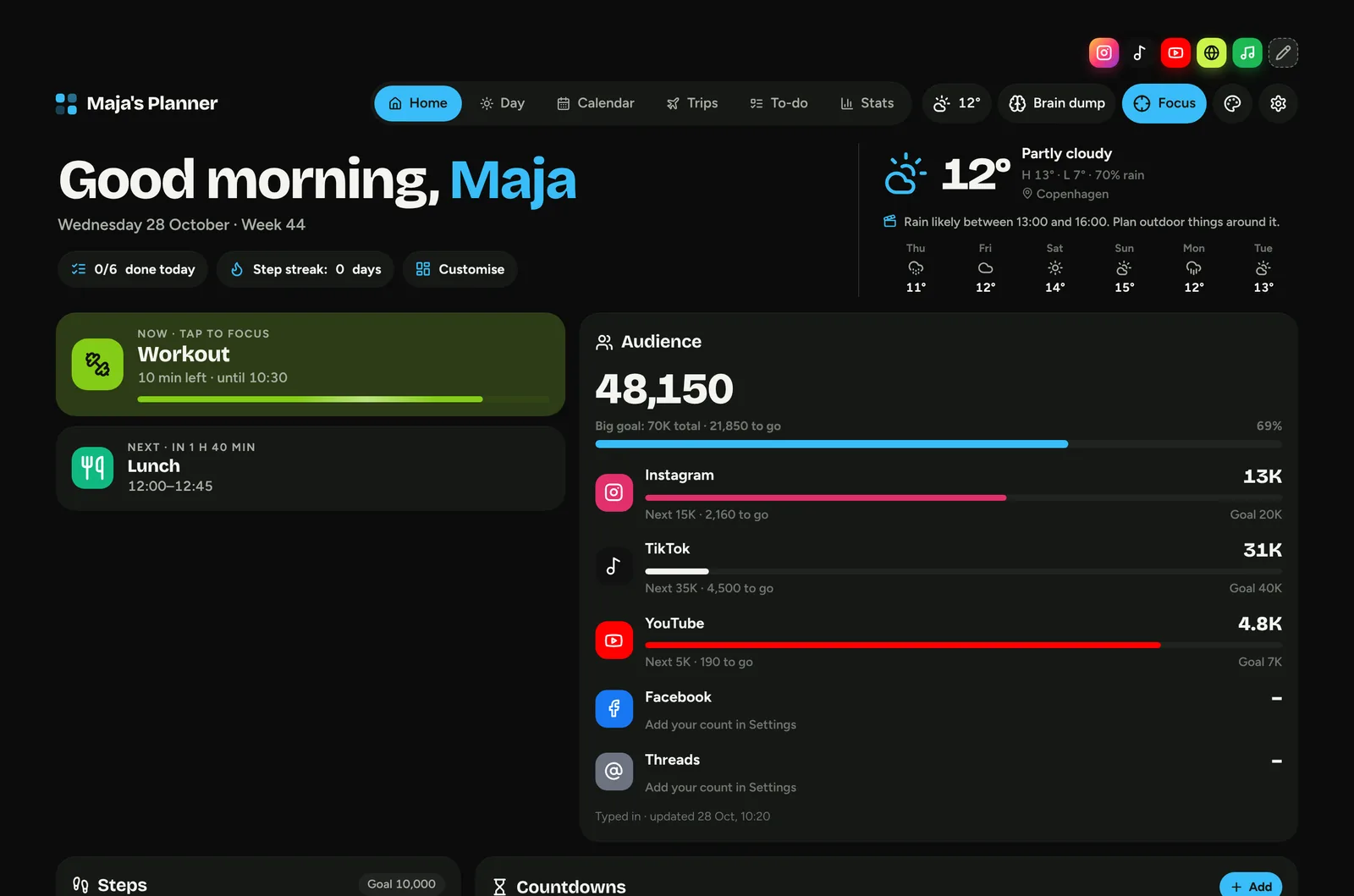
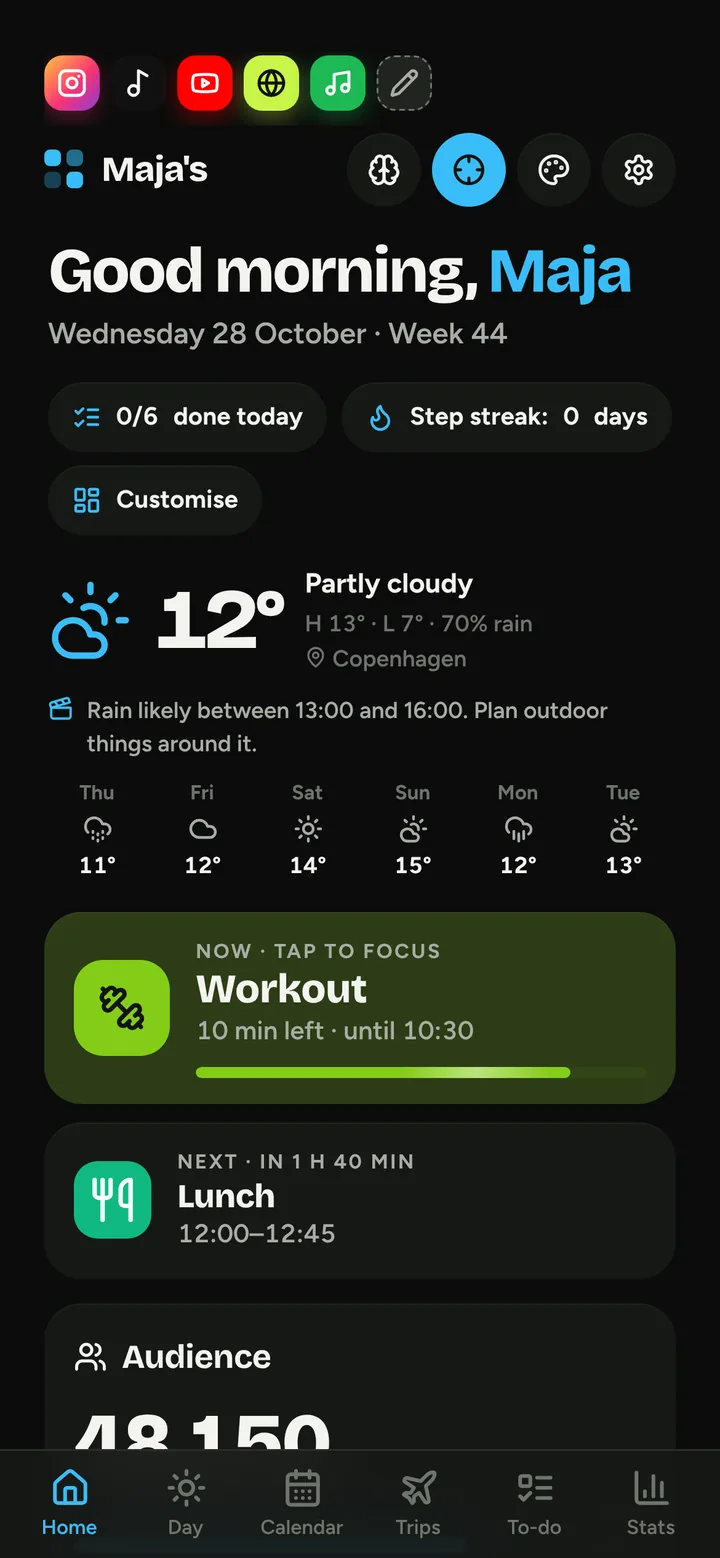
Get it running
Daglig runs in your browser, so there's nothing to install. Use it online at dagligapp.com/app, or keep it as a file.
Open dagligapp.com/app
Go to dagligapp.com/app in Safari, Chrome, Edge or Firefox, on your computer or your phone.
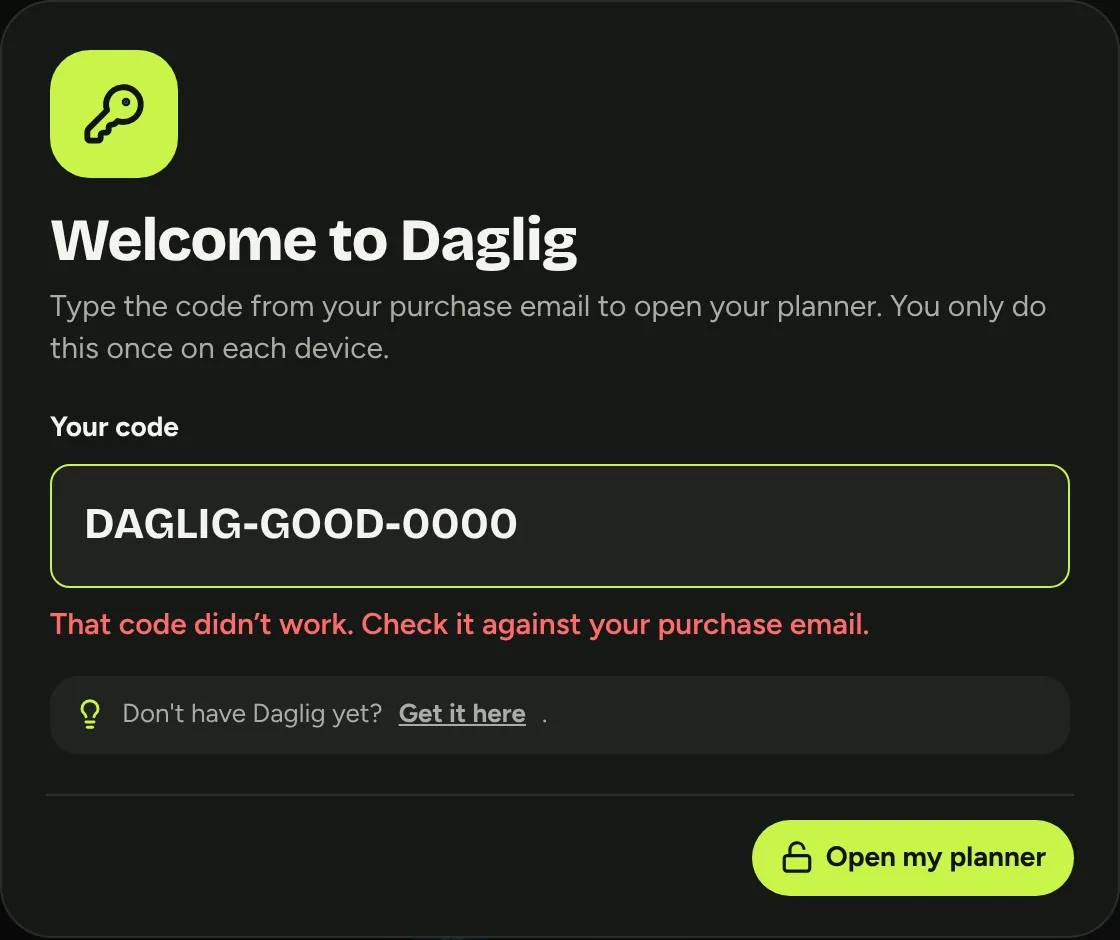
Type the code from your purchase email (it starts with DAGLIG-). You only do this once on each device. Then the setup starts.
Or keep it as a file
Your purchase email also has daglig.html, the whole planner in one file. Save it somewhere it can stay, like Documents, and open it in Chrome or Edge.
Pin it like an app
Add Daglig to your Dock or home screen, so it opens in its own window without browser bars.
| Device | Add it like an app |
|---|---|
| iPhone | Safari ShareAdd to Home Screen |
| Android | Chrome ⋮ menuAdd to Home screen |
| Mac | Safari FileAdd to Dock |
| Windows | Edge or Chrome ⋯ menuInstall app |
Pin it like an app, step by step
We picked your device for you. Tap another one if you want to set up a different device.
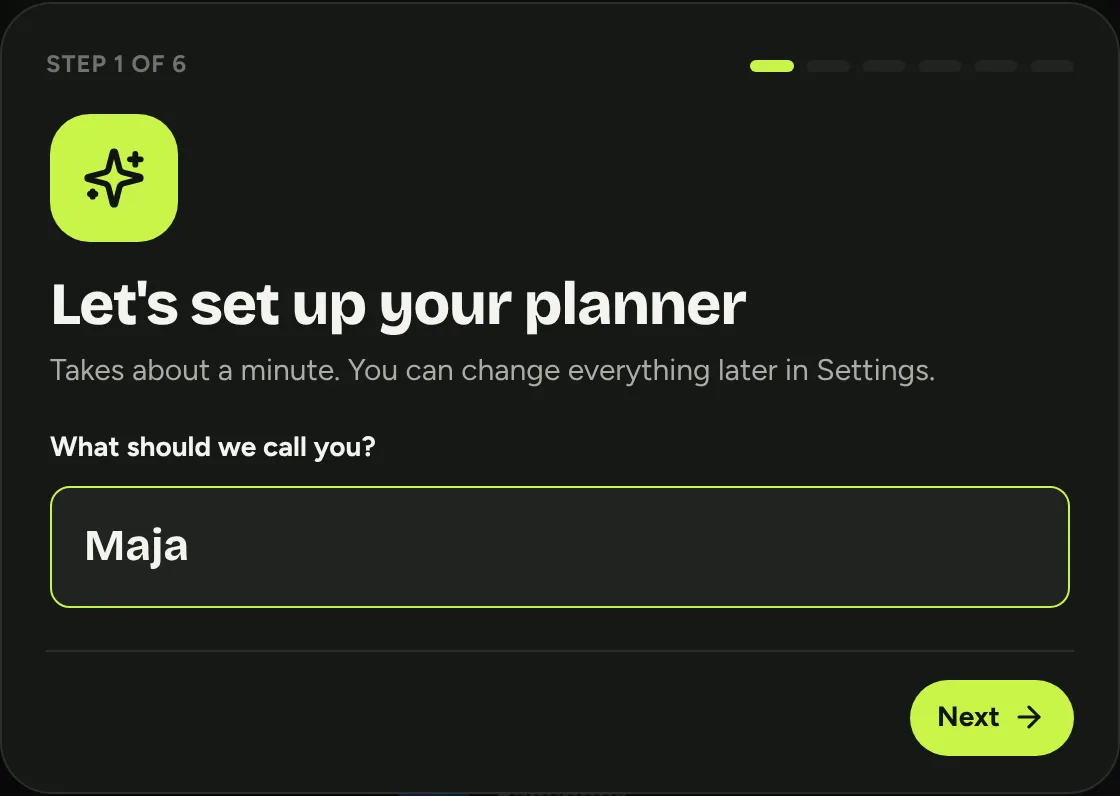
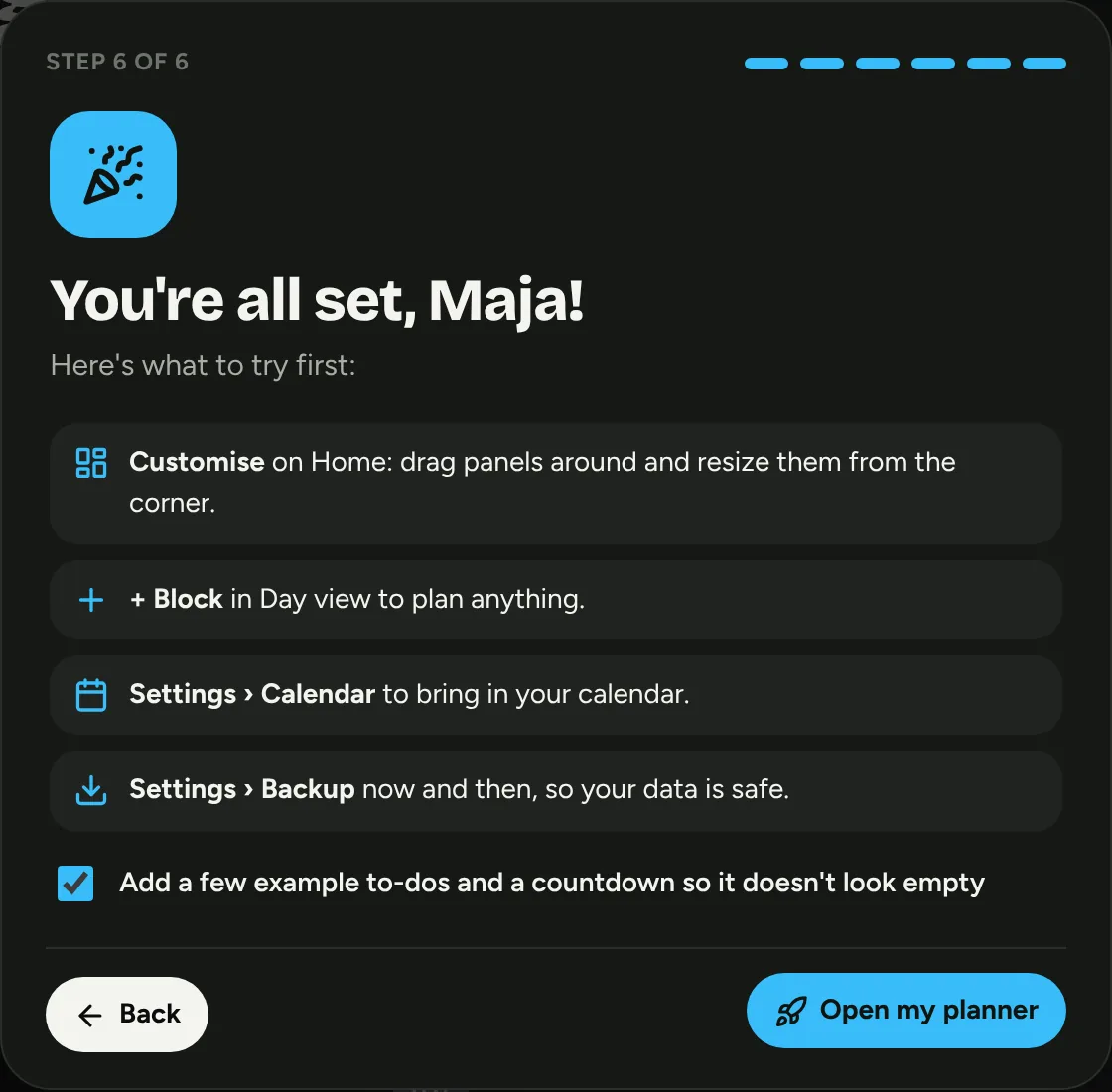
The one-minute setup
Seven short screens the first time you open it. Everything here can be changed later under ⚙ Settings.
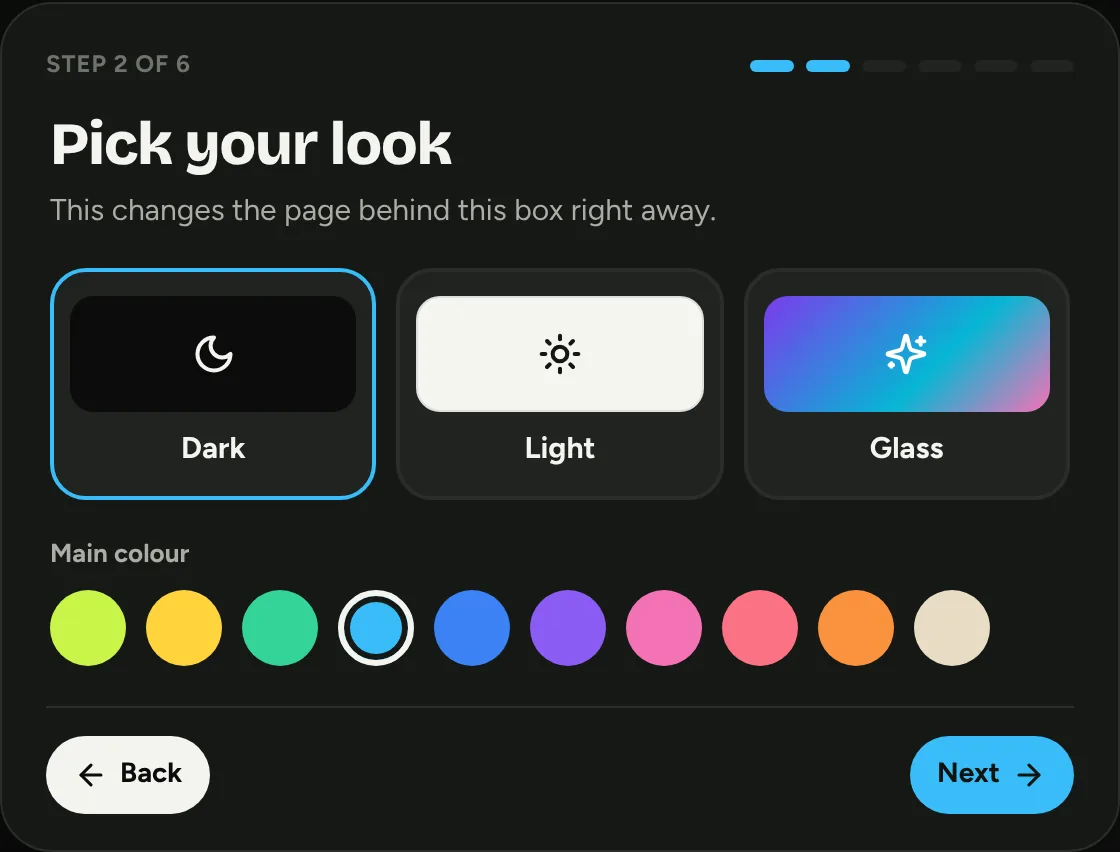
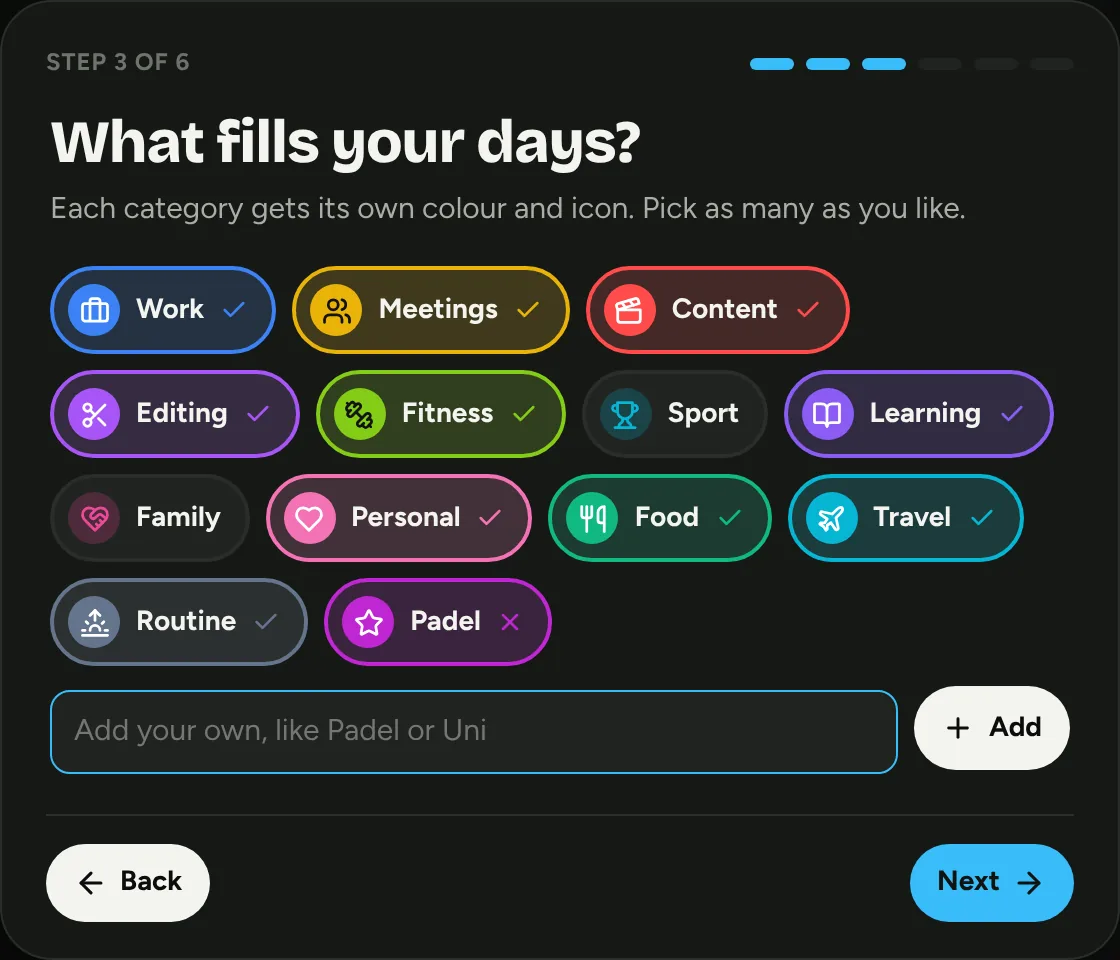
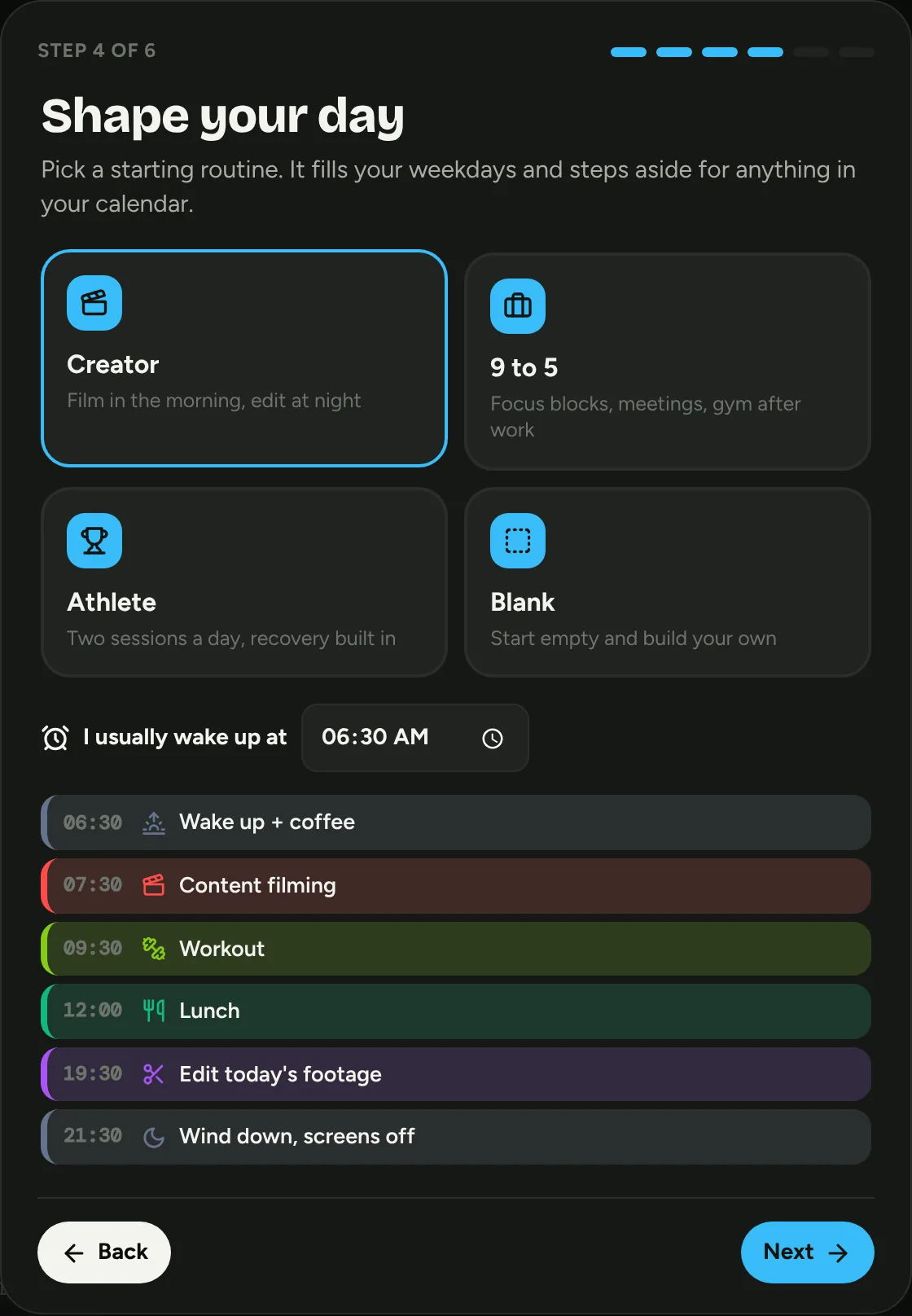
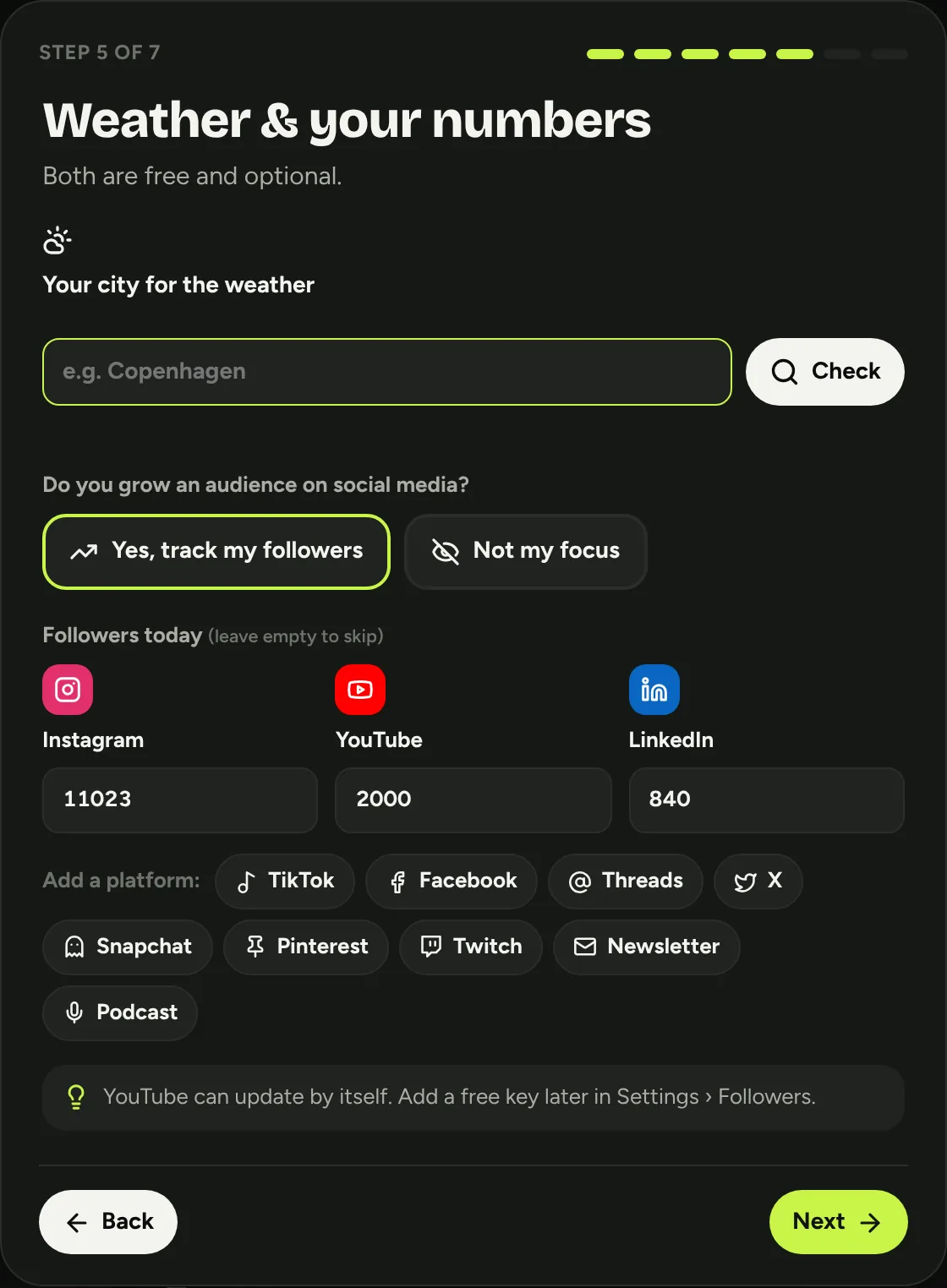
Make it yours
Move things around until it fits how your head works. All changes save instantly.
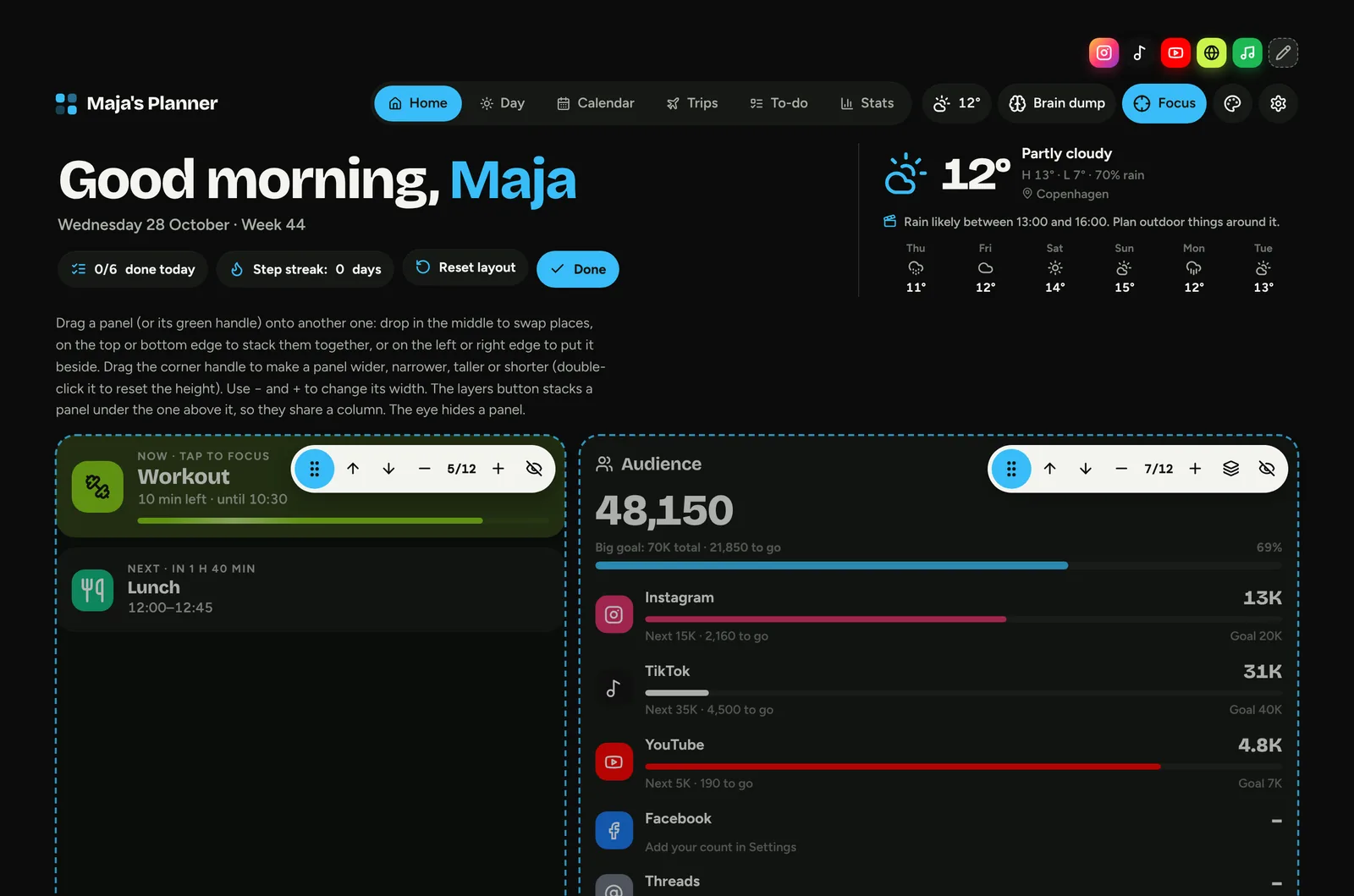
Arrange the home screen
On Home, press Customise. Each panel gets a small toolbar:
- 1Drag the dots onto another panel. Drop in the middle to swap, on an edge to stack or sit side by side.
- 2Make the panel narrower or wider.
- 3Stack it under the panel above, so they share a column.
- 4Hide a panel you don't need.
You can also drag a panel's bottom-right corner to resize it. Press Done when it looks right.
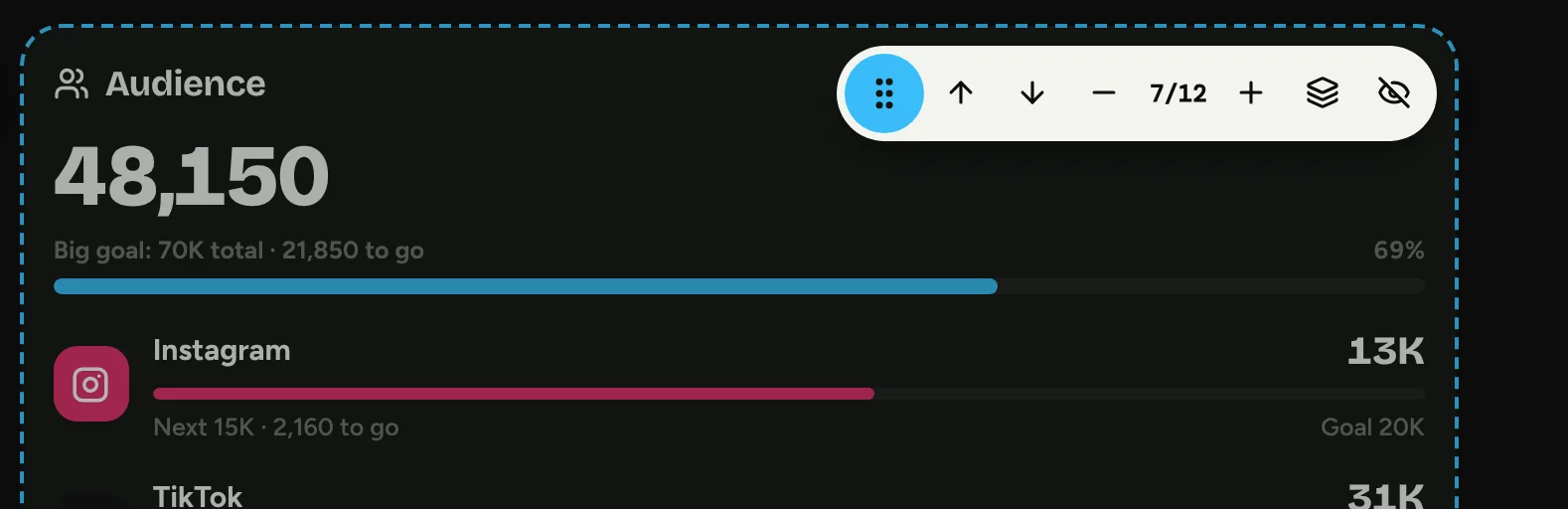 1234
1234Close-up of one panel's toolbar
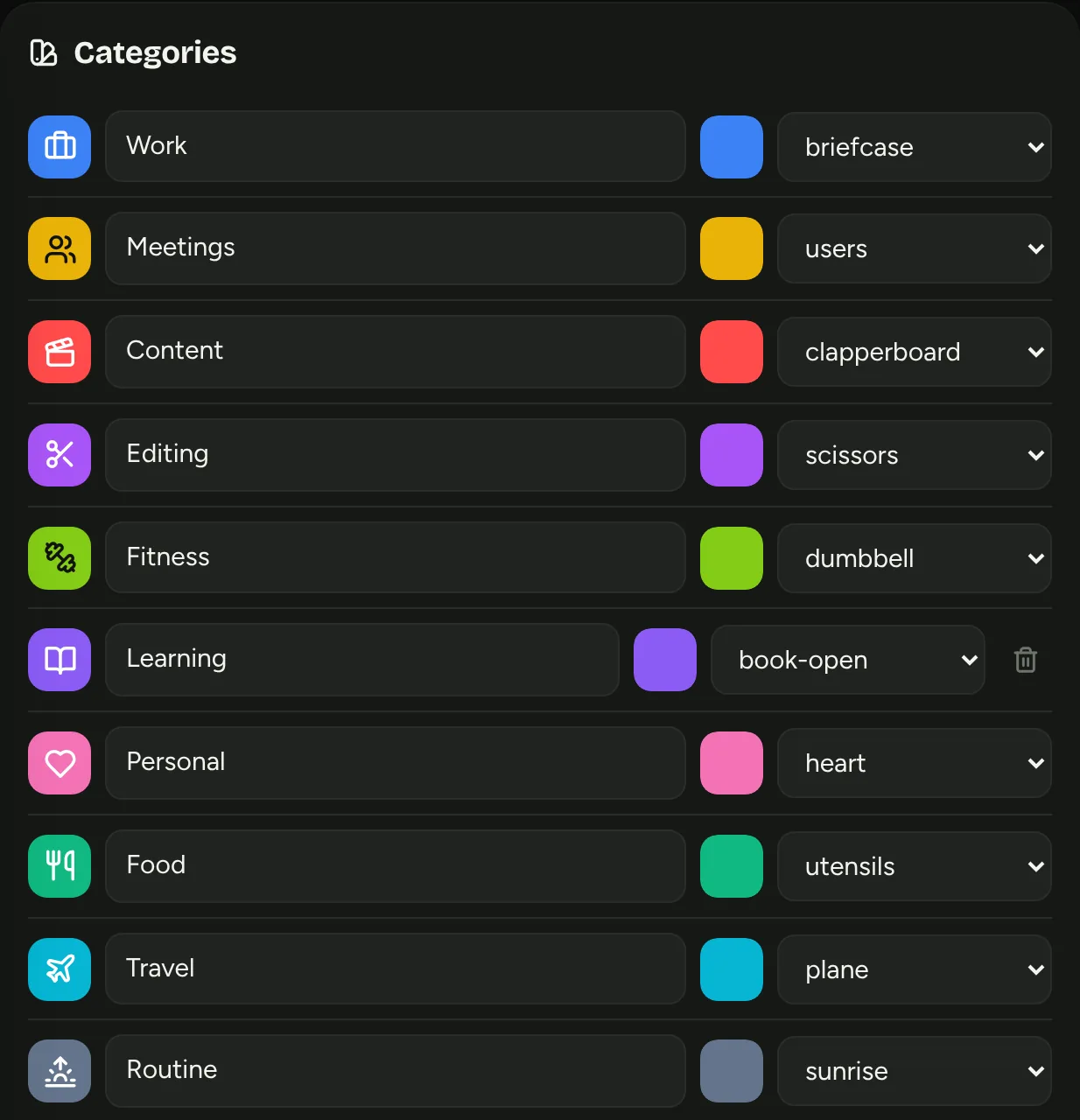
Categories and colours
Go to ⚙ SettingsCategories. Rename any category, change its colour and icon, or add a new one at the bottom.
Each block, to-do and chart uses these colours, so you can read your week at a glance.
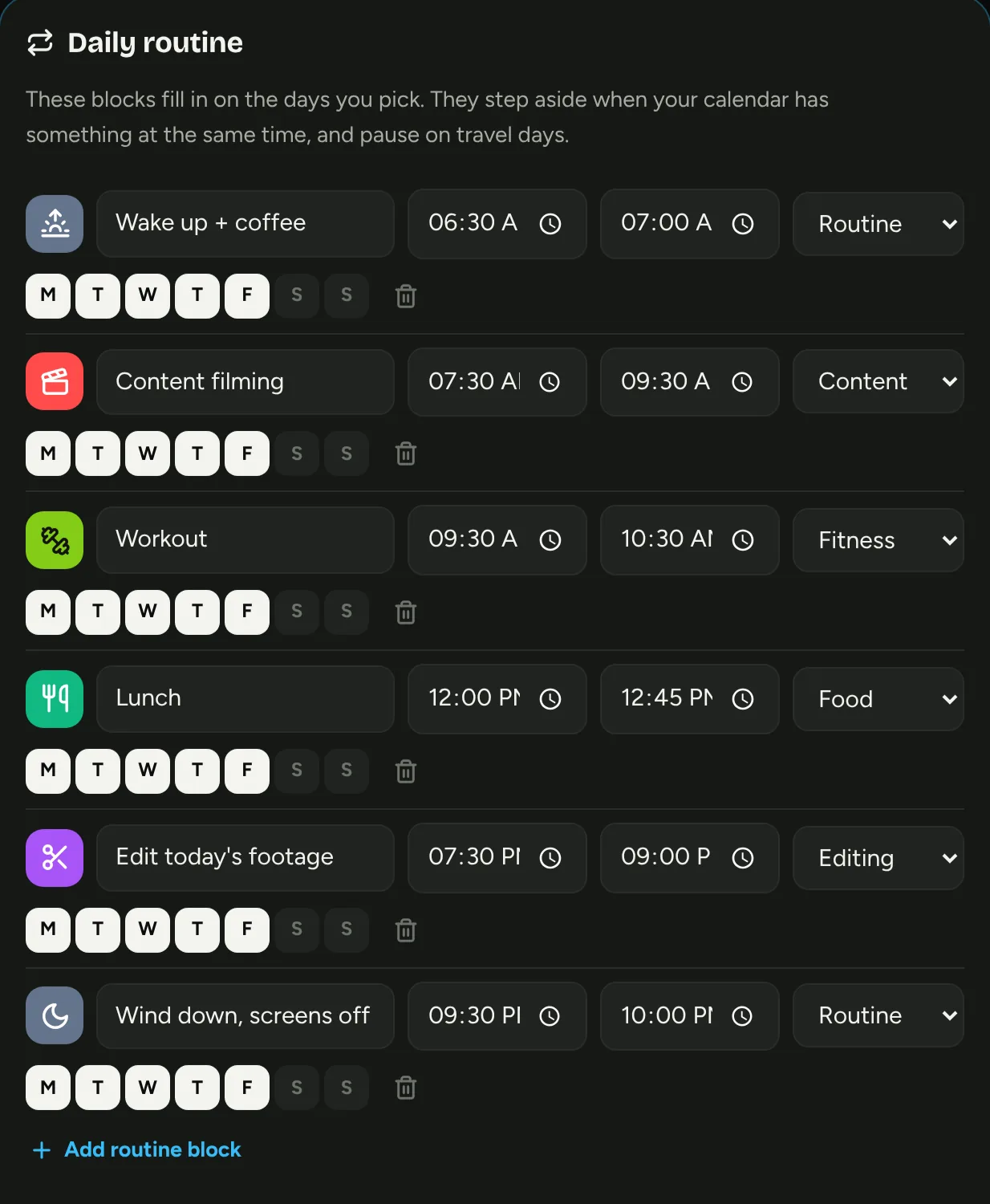
Your daily routine
In ⚙ SettingsDaily routine, set the blocks that repeat: wake-up, deep work, workout, lunch. Pick the weekdays with the letter buttons.
Routine blocks step aside when something in your calendar overlaps, and pause on travel days.
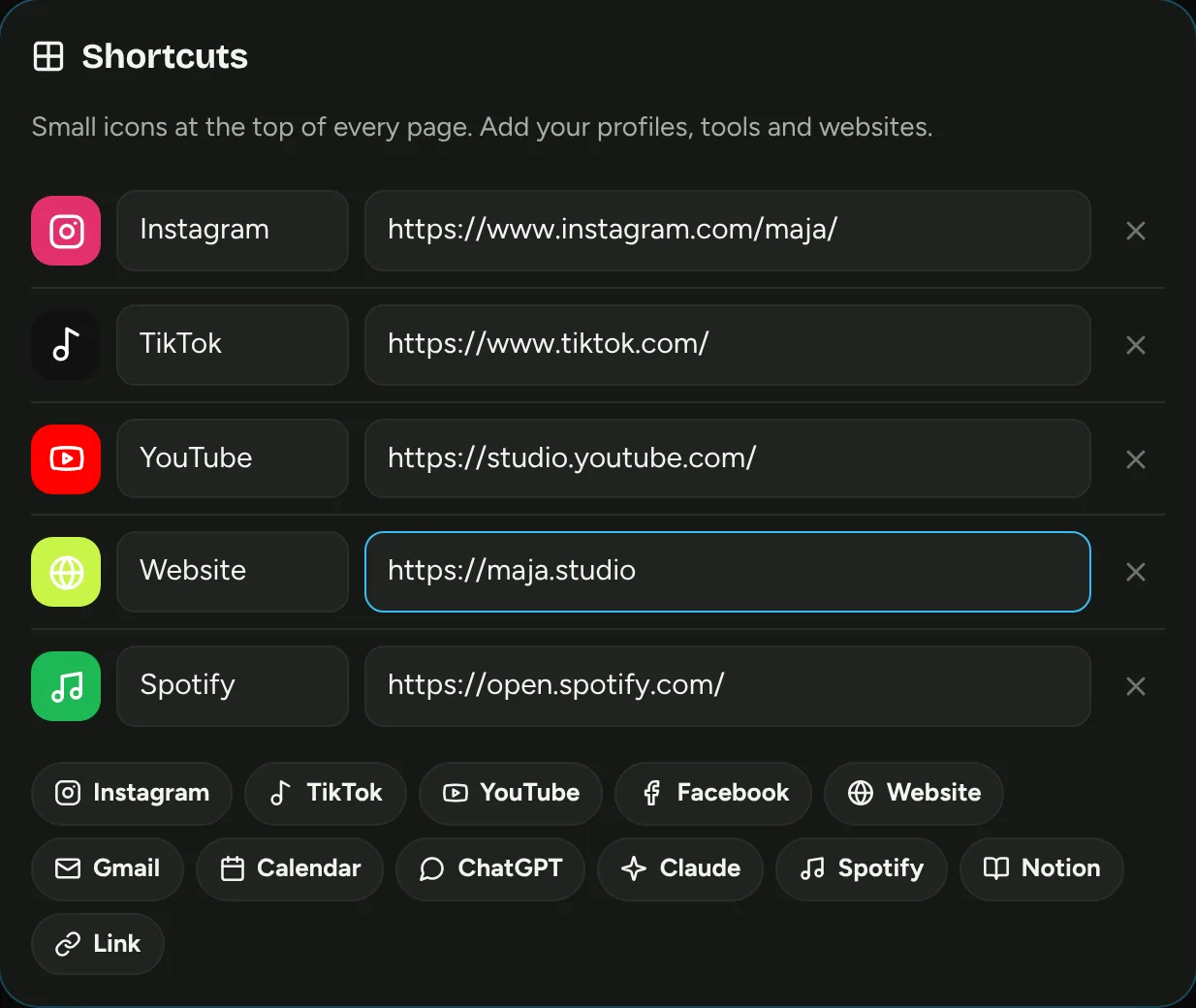
Shortcut icons
The small coloured icons at the very top are your shortcuts. Press the pencil to edit them, then tap a preset (Instagram, TikTok, Gmail, ChatGPT and more) and paste your own link.
Use them for your profiles, your website, or any tool you open every day.
Free social stats
The Audience panel shows each platform, your goal, and a growth chart. There are two free ways to fill it.
Type your numbers
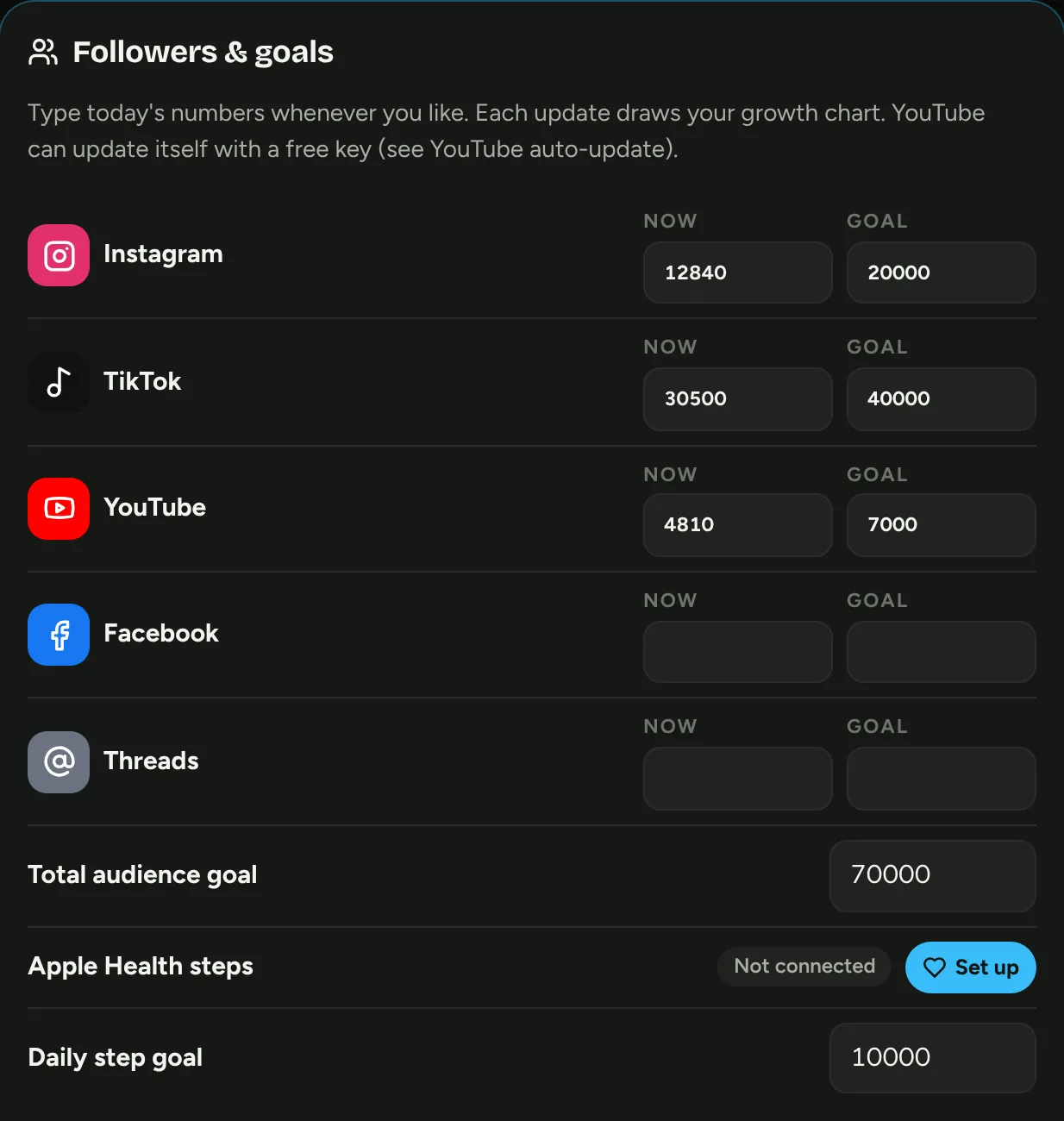
Open ⚙ SettingsFollowers & goals and type today's follower counts from each app. Set a goal for each one.
Do it once a week, for example every Monday. Every update adds a point to your growth chart, so the trend builds itself.
Connect YouTube for free
Google gives anyone a free key for public channel numbers. With it, your subscriber count updates by itself every few hours. Steps below.
Type today's numbers
The Now field is today's count. The Goal field draws the progress bar. The total goal at the bottom is the big number on Home.
Get a free YouTube key
- Go to console.cloud.google.com and sign in with any Google account.
- Create a project. Call it
Planner. - Open APIs & ServicesLibrary, search for YouTube Data API v3 and press Enable.
- Open CredentialsCreate credentialsAPI key and copy the key. It starts with
AIza. - Press Edit API key. Under API restrictions, choose YouTube Data API v3 only, then save.
Where to click in Google Cloud. Menus can look slightly different.
Paste it in the planner
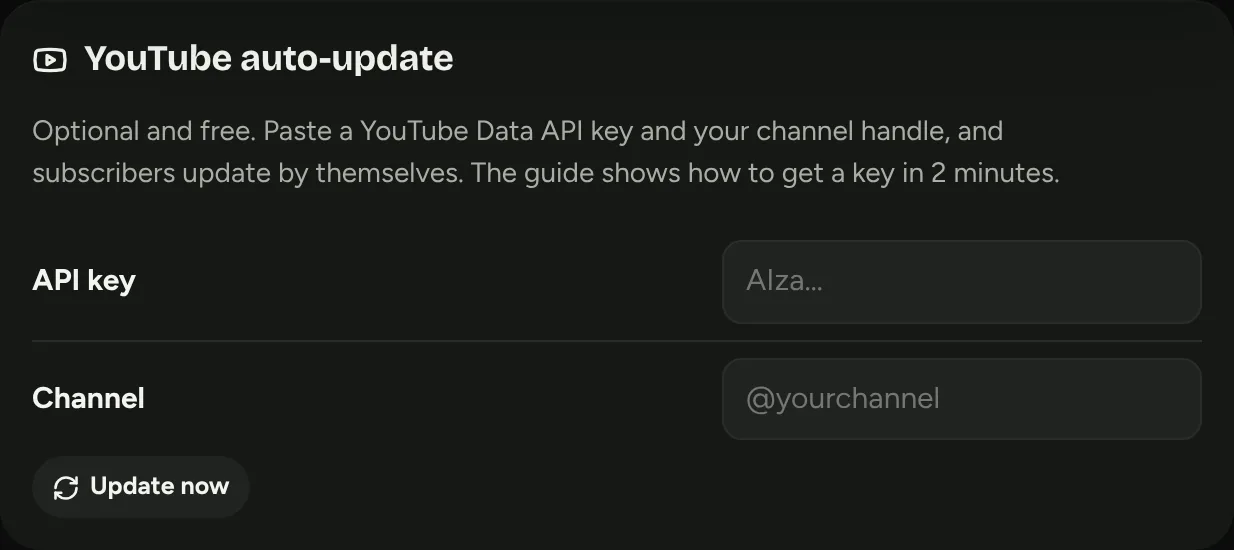
Open ⚙ SettingsYouTube auto-update. Paste the key, type your channel handle (like @yourchannel) and press Update now.
From then on it refreshes by itself when you open the planner. The Refresh button on the Audience panel also works.
Why not Instagram and TikTok too?
They only share follower counts with registered developer apps that pass a review, and Instagram needs a Business or Creator account linked to Facebook. That's too much for a personal planner, so typing the number is the free route. Paid tools like Metricool can fetch them for you if you'd rather not type.
| Platform | Free way | Automatic? |
|---|---|---|
| YouTube | Free Google key | Yes |
| Type the number | No | |
| TikTok | Type the number | No |
| Type the number | No | |
| Threads | Type the number | No |
Calendar & weather
Bring in the meetings you already have, and see when it's going to rain.
Export your calendar
Every calendar app can save a .ics file:
- Google Calendar on a computer: ⚙ SettingsImport & exportExport. You get a .zip; open it to find one .ics file per calendar.
- Apple Calendar on a Mac: select a calendar, then FileExportExport…
- Outlook: use Save calendar or Share › Publish and download the ICS file.
Import it
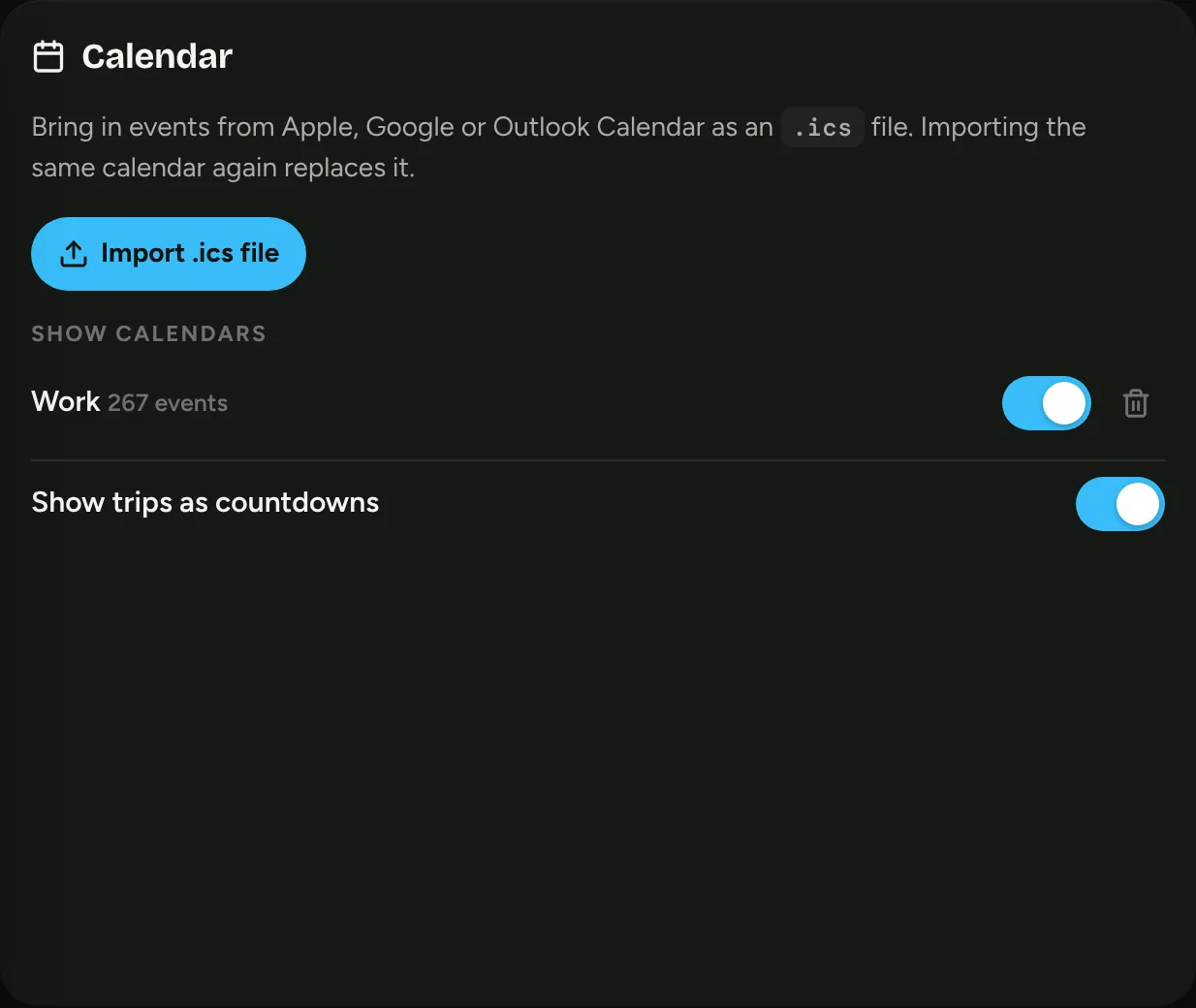
Open ⚙ SettingsCalendar and press Import .ics file. Repeating meetings, all-day events and Zoom or Meet links come with it.
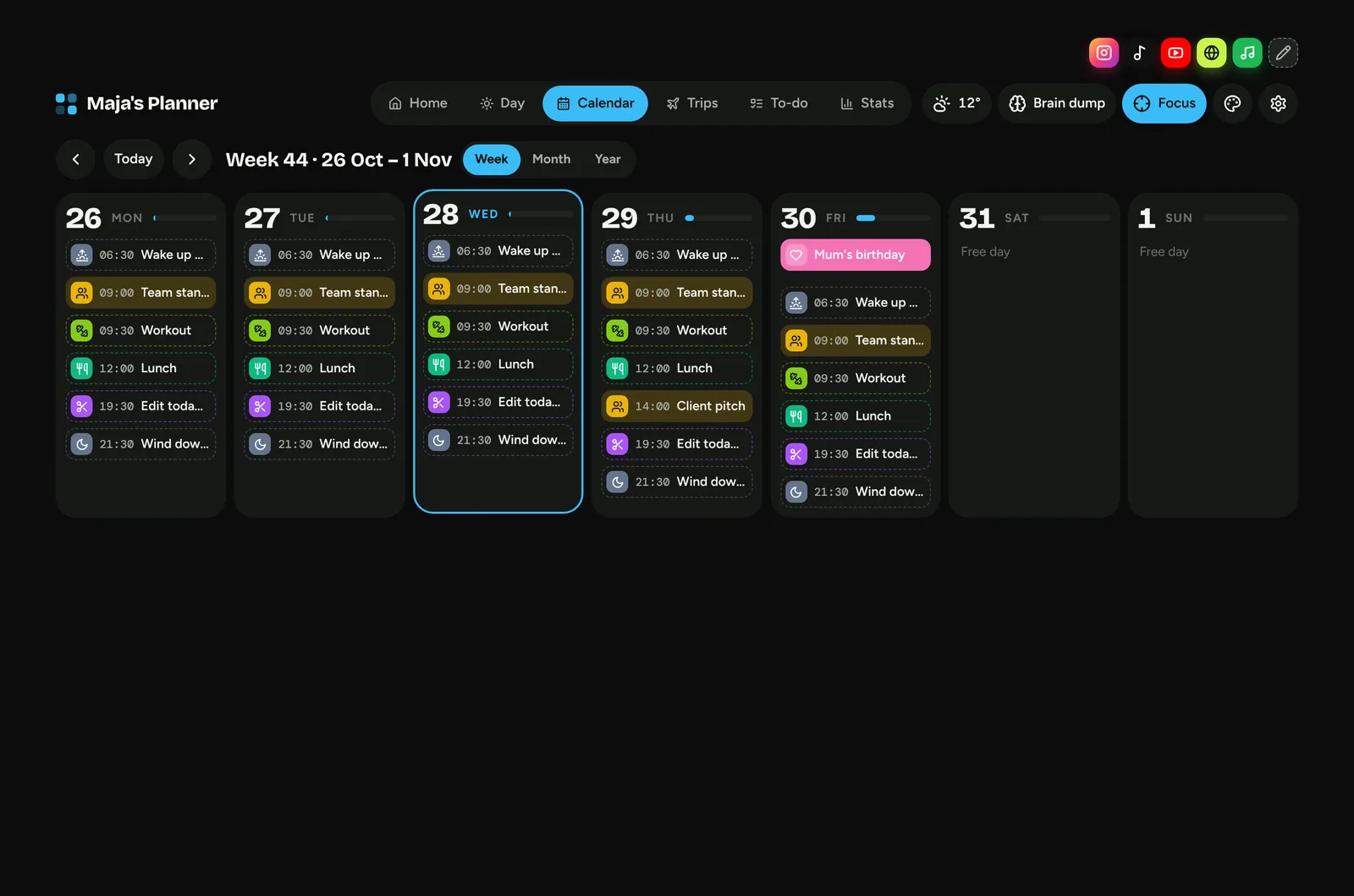
To update, import the newest file again. It replaces the old copy of that calendar. Turn calendars on and off with the switches.
Weather
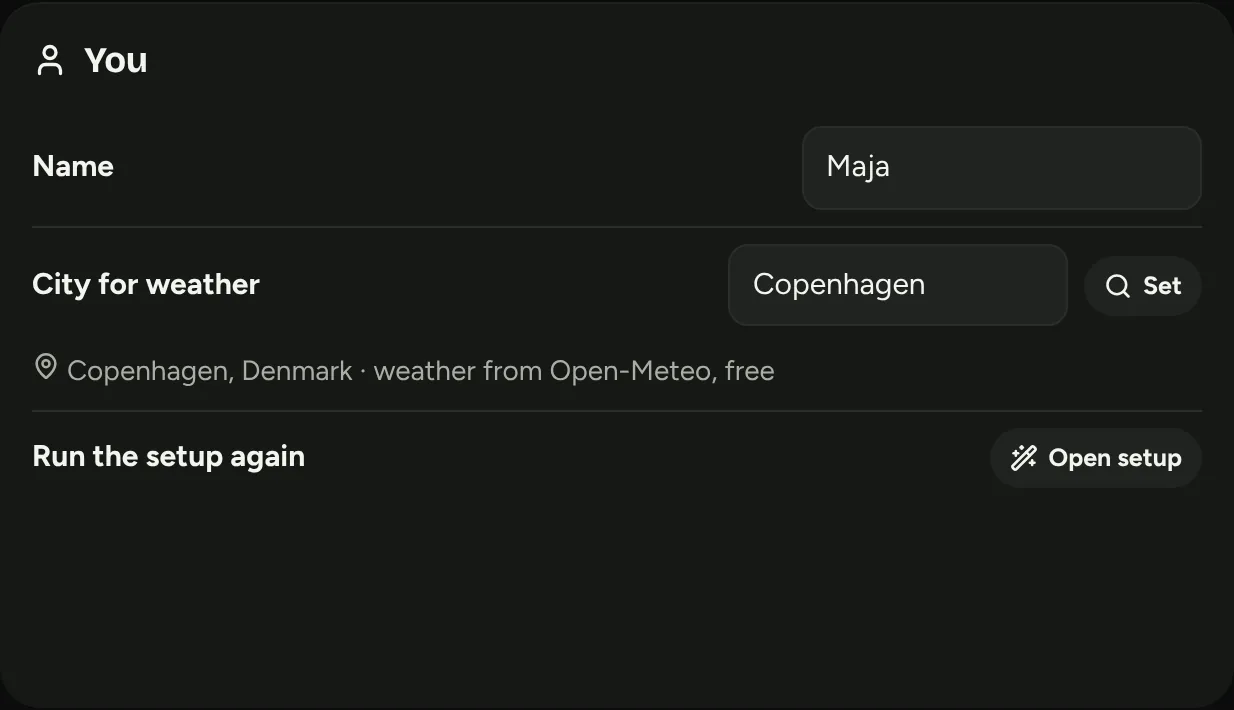
Type your city in ⚙ SettingsYou and press Set. The forecast comes from Open-Meteo, which is free and needs no key.
It refreshes every half hour and warns you when rain is likely later today.
Backup and moving devices
Your planner lives in your browser, which also means it's only there. A backup takes one click.
Download a backup
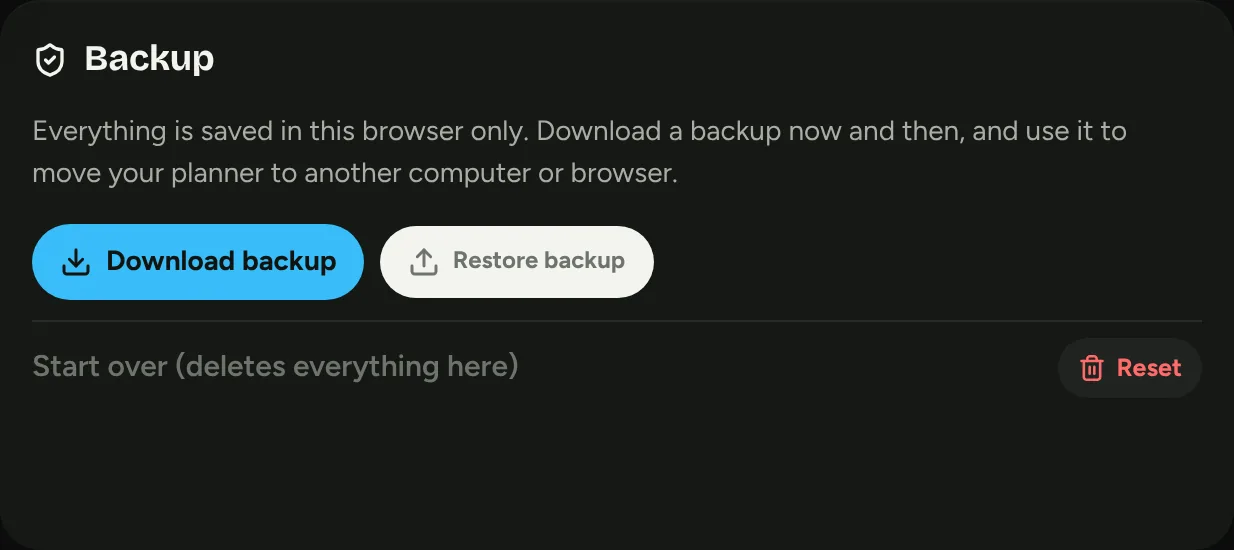
Open ⚙ SettingsBackup and press Download backup. You get a small file like planner-backup-2026-10-28.json. Do it every week or two.
Move to a new computer or phone
- Download a backup on the old device.
- Open the planner on the new device and skip through the setup.
- Press Restore backup and pick the file.
Upgrade with Claude
Use Claude? Then the same planner can fill itself in. You keep everything you've set up, and one prompt does the rest.
You type, it shows
- Import your calendar as an .ics file
- Type follower numbers; YouTube updates with a free key
- Add flights and hotels by hand
- Weather from your city
- Lives in one browser, moves with a backup
It fills itself in
- Calendar every 2 hours, with Zoom, Meet and Teams links found in your email
- Follower counts for every platform, looked up each morning
- Flights and hotels read from booking emails, screenshots and links
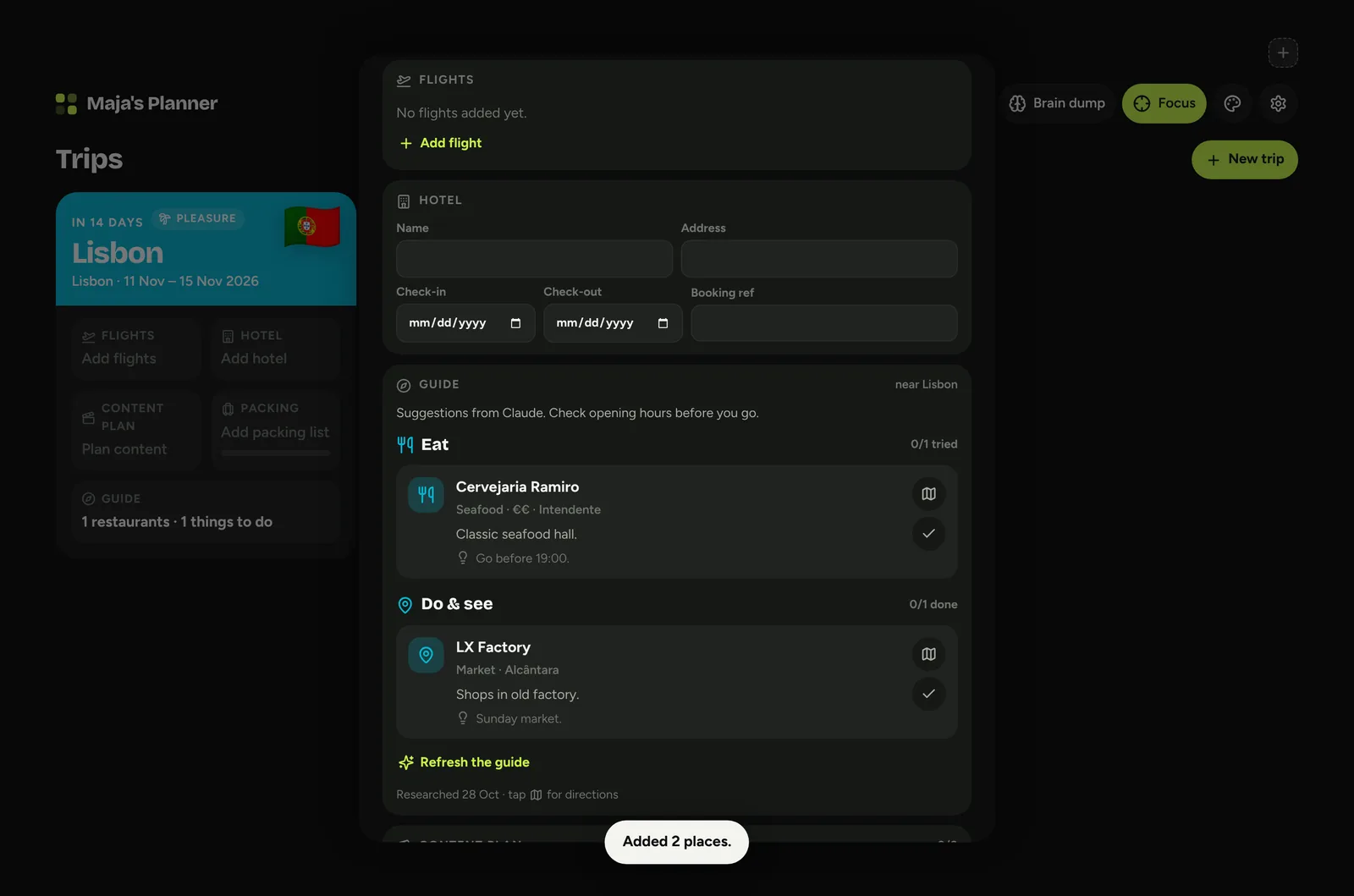
- Restaurants and things to do near your hotel, one tap per trip
- Saved in Claude, so it's the same on every device you sign in on
Say yes in the setup
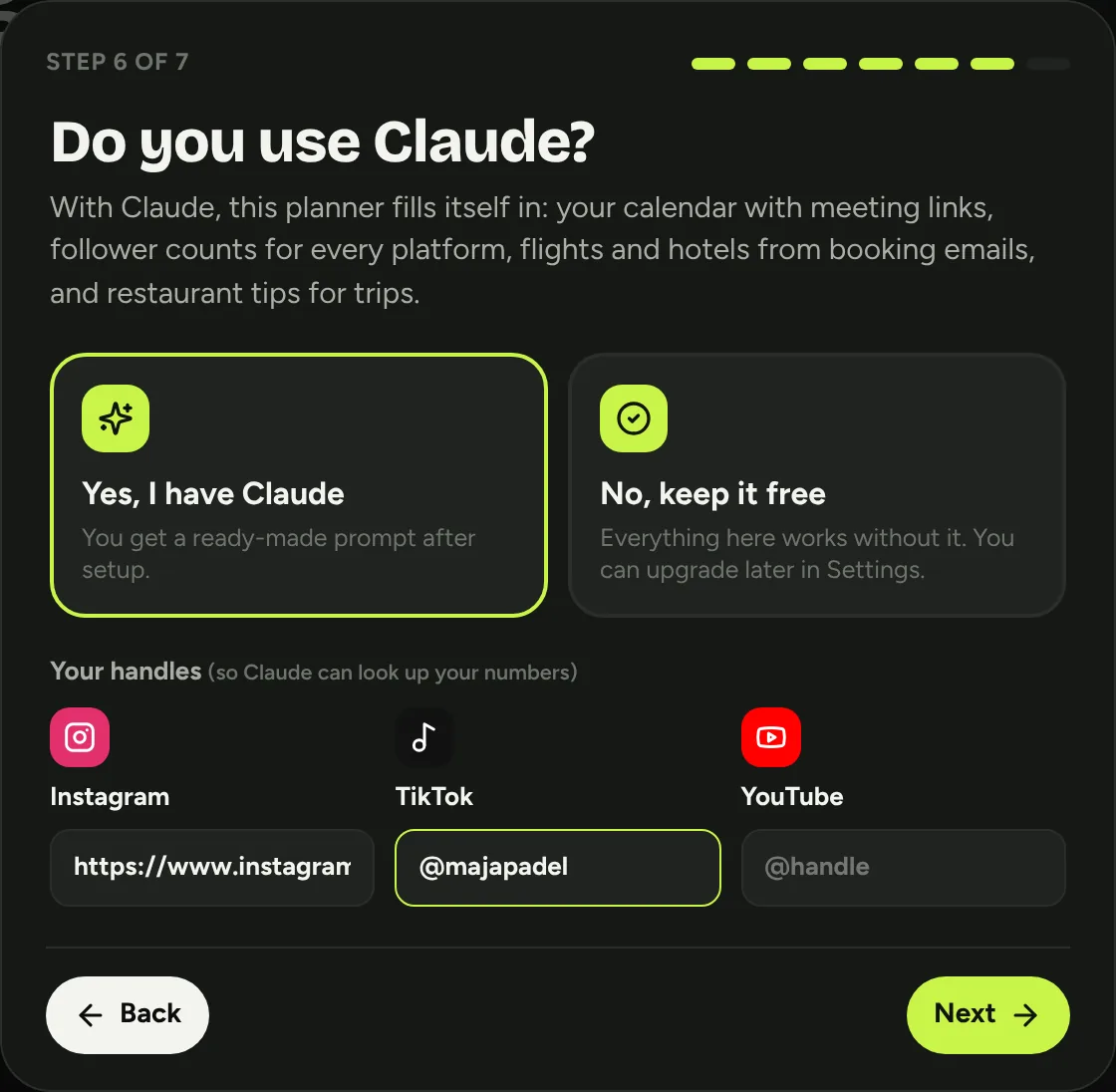
The setup asks Do you use Claude? Pick Yes and type your Instagram, TikTok and YouTube handles, so Claude knows whose numbers to look up.
Already set up? Add your handles under ⚙ SettingsYou instead.
Upgrade and grab your backup
Go to dagligapp.com/upgrade and type the code from your purchase email: Pro is €25 for Daglig owners. You get daglig-pro.html and the prompt by email.
Then open ⚙ SettingsBackup in your current planner and press Download backup.
The backup carries your name, colours, categories, routine, to-dos and trips over to Claude.
Paste it into Claude
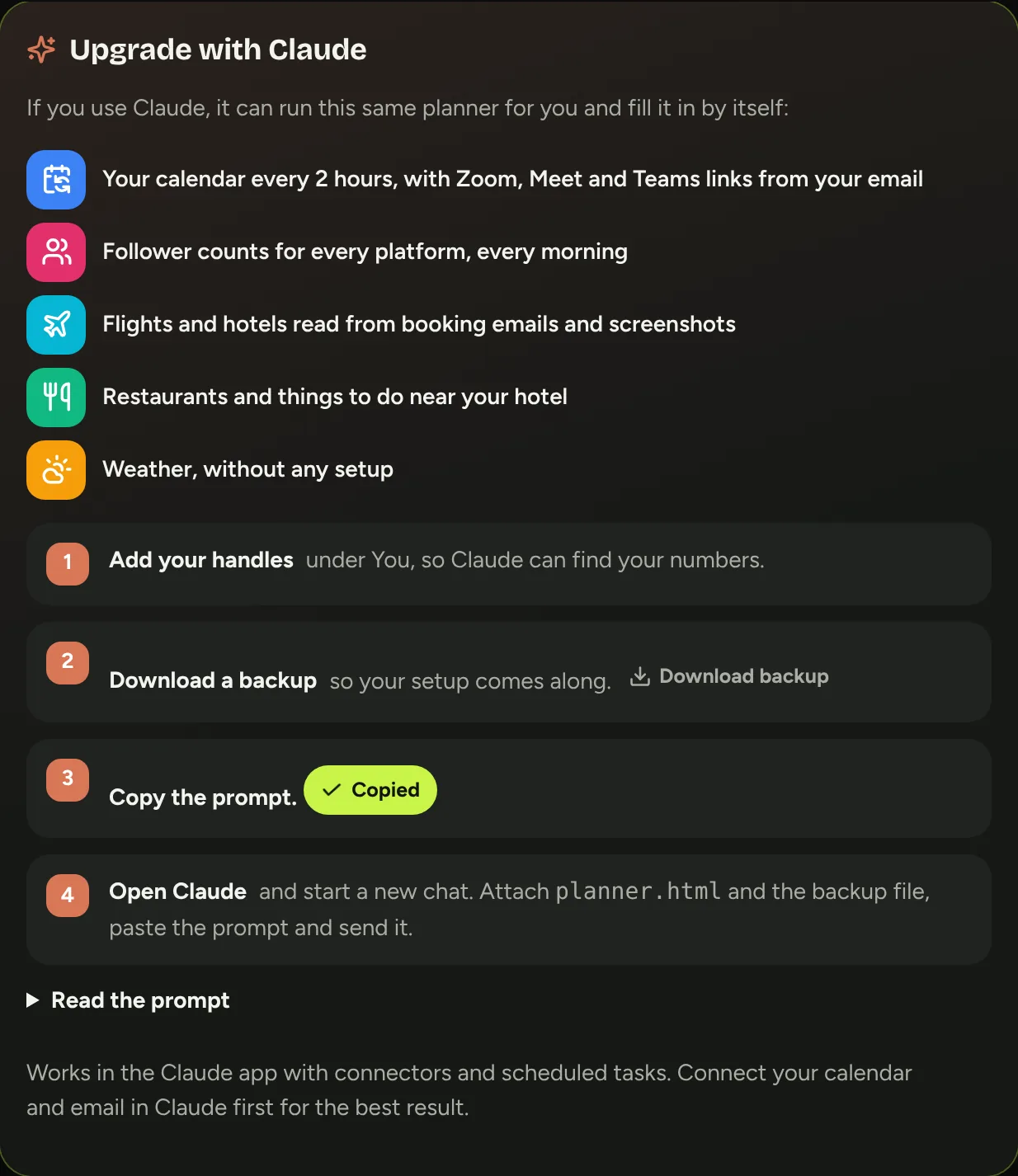
- Connect your calendar and email in Claude first, under SettingsConnectors.
- Start a new chat.
- Attach
daglig-pro.htmland yourplanner-backup-….jsonfile. - Paste the prompt and send it.
The prompt comes with Daglig Pro. You find it in your purchase email, next to daglig-pro.html.

It tells Claude to publish your planner, bring in your backup, check your connectors and set up four scheduled tasks: calendar, followers, weather and travel.
What happens next
Claude publishes your planner as your own private page, brings your data in, and sets up four scheduled tasks that keep it fresh. It ends with your link.
Inside Claude, every trip gets a Find restaurants button, and you can drop booking screenshots straight into it.
- Every 2 hCalendarYour events and meeting links, 07:00–21:00.
- Every morningFollowersCounts for each handle, added to your growth chart.
- Every 3 hWeatherA 7-day forecast and a rain warning for your city.
- Twice a dayTravelFlights and hotels from booking emails, into your trips.
Good to know
Does anything cost extra?
No. Daglig is a one-time purchase, and the weather and the YouTube key are free. Pro needs your own Claude plan.
Who can see my data?
Only you. Everything is saved in your own browser. Nothing is sent anywhere except your city (for the weather) and your YouTube handle (if you add a key).
Does it work without internet?
Yes. Planning, to-dos, habits and stats all work offline. Weather and YouTube update the next time you're online.
Can I track my own habits and numbers?
Yes. Go to Settings › Habits to add habits and set how many days a week you're aiming for. Go to Settings › My numbers to track sleep, water, weight, sales or anything you name. Both show on Home and in Stats.
Can I count my steps?
The step tracker with a step goal and Apple Health sync is part of Daglig Pro. In Daglig you can add Steps under Settings › My numbers and type them in.
How do I add something?
Tap the big Add new button at the bottom right. It adds a block, to-do, countdown or trip, and lets you tick off habits or log a number.
I changed my mind about the setup.
Open Settings › You › Open setup to go through it again. Your blocks and to-dos stay.
Do I need Claude?
No. Everything in chapters 1 to 6 is free and works on its own. Chapter 7 is an optional upgrade for people who already use Claude.
Can Claude send emails or change my calendar?
The prompt tells Claude to only read your email and calendar: never send, reply, accept, delete or label anything.
Something isn't working
See dagligapp.com/help for quick fixes, or write to [email protected]. Inside the planner you also find it under Settings › Help & support.
Can I start completely over?
Settings › Backup › Reset deletes everything in this browser and shows the setup again. Download a backup first if you might want it back.